Caster Lower Third: OBS Setup vs the Native Way
Caster lower thirds without the OBS plumbing: how HUDrift renders commentator name plates natively, and how to build them in OBS if you are still using it.
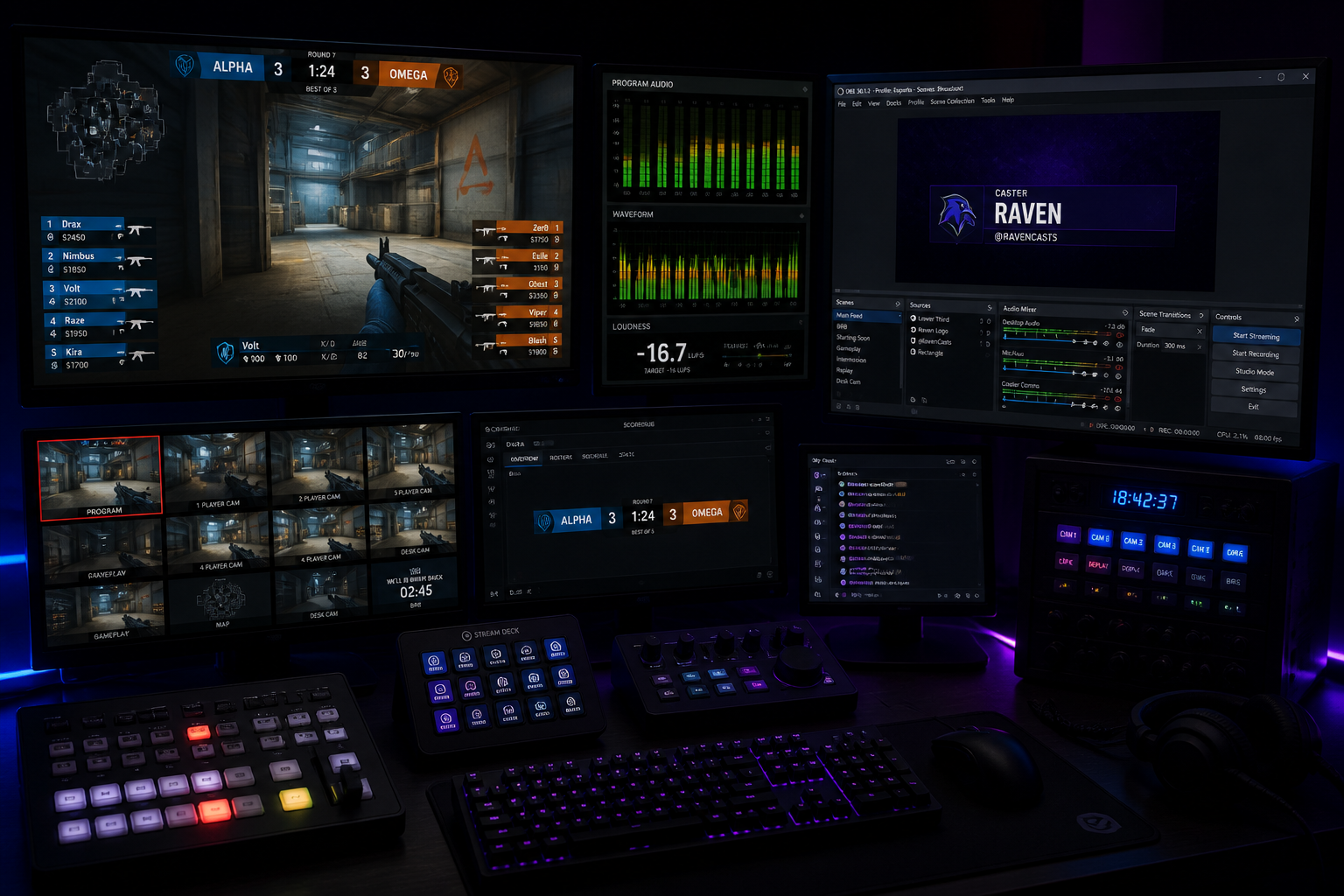
A caster lower third is the name plate that tells your audience who is talking. Most guides assume you will build it out of browser sources, image layers and hotkeys inside OBS. You do not have to. HUDrift is a complete broadcast studio for Rocket League with caster lower thirds built in, so the name plate is a field you fill in rather than a scene you assemble. This guide covers the native route first, then the OBS route honestly, in case you are still running that setup.
Do you need OBS for a caster lower third?
No. OBS is a generic scene compositor, so anything broadcast-specific has to be recreated by hand: a PNG per caster, a text source per role, a scene per pairing, and a hotkey for every swap. That is why lower thirds feel like a project in OBS. HUDrift ships the broadcast layer itself, so talent graphics, scorebugs and brackets are features of the product rather than things you rebuild every event.
If you already have an OBS setup you are happy with, the manual method further down still works and is still worth understanding. If you are starting from scratch, start native.
The native route: caster lower thirds in HUDrift
In HUDrift the lower third reads from your event data. You enter your commentators once for the event, and the name plate is available on every match in that event without touching a scene collection.
- Add your casters to the event with name, role and handle.
- Pick the lower third style that matches your event branding.
- Trigger it live from the broadcast controls, or let it animate in automatically at series start.
- Swap talent mid-event by editing the caster, not by rebuilding a scene.
Because HUDrift also runs the bracket and the scoreboard, the lower third stays consistent with the rest of your graphics package. You can host a tournament on HUDrift and have talent graphics ready before the first match.
The OBS route, if you are still using OBS
What is a Caster Lower Third and Why Is It Essential?
A caster lower third is a graphic overlay placed in the lower-third area of the screen, typically containing a commentator's name, role (like 'Play-by-Play' or 'Analyst'), and sometimes a social media handle or team affiliation. Its primary function is informational, immediately telling viewers who is speaking. This simple graphic element is a cornerstone of broadcast professionalism, transforming a simple stream into a credible production.
The value extends beyond simple identification. For large-scale, multi-day tournaments like the Dota 2 tournament at EWC 2026, multiple caster pairs may cover different matches or stages of the event. A consistent and clear caster lower third helps viewers keep track of the talent roster, builds familiarity with your commentators, and reinforces the overall brand identity of your tournament. It signals to the audience that they are watching an organized, high-quality event.
Furthermore, defining roles within the graphic itself adds a layer of understanding for the audience. Distinguishing between a 'Play-by-Play' caster who narrates the action and a 'Color' or 'Analyst' caster who provides strategic insight helps viewers better process the information being presented. It sets expectations and structures the viewing experience, making the commentary more effective and easier to follow, especially for those new to the esport.
Building Your Basic Caster Lower Third in OBS Studio
Creating your first caster lower third in OBS Studio is a straightforward process that requires just a few sources. Before you begin, you'll need a graphic file for the lower third's background. This should be a PNG file with a transparent background so it can be overlaid cleanly on top of your game feed. You can find many free or paid options online or design your own.
To keep your OBS project organized, it's best practice to build your overlays in a separate, dedicated scene. This is called a 'nested scene' workflow. Create a new scene and name it something descriptive like "Graphics - Lower Thirds". This scene will house all the components of your graphic.
- In your "Graphics - Lower Thirds" scene, click the '+' button under the 'Sources' dock and select 'Image'. Name it "LT Background" and browse to your PNG file.
- Next, add the caster's name. Click '+' again and select 'Text (GDI+)'. Name this source "LT Caster Name". In the properties window, type the caster's name. Choose a clean, readable font like Montserrat, Roboto, or Tungsten. Set a color that has high contrast with your background graphic.
- Add another 'Text (GDI+)' source named "LT Caster Role". Type the role, such as 'Analyst', and position it below or beside the name. Often, this text is smaller or a different weight/color to create a visual hierarchy.
- Once all elements are positioned correctly, select all of them in the 'Sources' dock (Ctrl+Click), right-click, and choose 'Group Selected Items'. Name this group after the caster, for example, "Caster A - LT".
- Finally, go to your main gameplay scene (e.g., "Live Game"). Add a new source by clicking '+', selecting 'Scene', and choosing your "Graphics - Lower Thirds" scene. You can now toggle the entire lower third on and off by showing or hiding this single nested scene source.
This method is the foundation of broadcast graphics in OBS. It keeps your main scene clean and allows you to build complex overlays in an isolated environment. For more advanced OBS techniques and a deeper understanding of its source system, the official OBS Project documentation is an invaluable resource for any technical director.
Managing Multiple Commentators: Hotkeys and Scene Swapping
When your broadcast involves more than one caster, you need an efficient way to swap their lower thirds live. The most direct method within OBS is to duplicate the group you created. In your nested "Graphics - Lower Thirds" scene, right-click the "Caster A - LT" group and select 'Duplicate'. Name the new group "Caster B - LT". Now, expand this new group and edit the Text sources inside to reflect the second caster's information.
With two or more caster groups in your scene, you can manually toggle their visibility with the 'eye' icon, but this is slow and prone to error during a live show. A better approach is to use hotkeys. Go to 'File' > 'Settings' > 'Hotkeys'. In the search bar, type the name of your caster group (e.g., "Caster A - LT"). You will see options to set a hotkey to 'Show' and 'Hide' that group. Assign a unique key combination for each caster's show/hide action.
While hotkeys are an improvement, the gold standard for manual control is a device like an Elgato Stream Deck. Using its 'Multi Action' feature, you can program a single button to perform a sequence of commands: Hide 'Caster A - LT', Hide 'Caster C - LT', and Show 'Caster B - LT'. This ensures that only one lower third is ever active, eliminating the risk of embarrassing on-screen errors. For fast-paced tournament coverage, like tracking multiple concurrent matches at an event like IEM Chengdu where FaZe recently secured a playoff spot, this level of control is not a luxury, but a necessity.
Automating Your Caster Lower Third with HUDrift
Manual scene and source management in OBS works, but it doesn't scale well and adds another point of failure for a solo producer or small team. This is where a dedicated broadcast tool like HUDrift simplifies the entire workflow. Instead of building graphics inside OBS, you manage your talent roster from a web-based dashboard, and HUDrift renders the overlay for you via a single Browser Source.
The process is designed for efficiency. First, you add all your potential commentators to your HUDrift event under the 'Casters' tab. For each person, you enter their name, role, and social media handle. This information is saved centrally. Then, you choose a design from our library of professional esports overlays, which includes designs with integrated caster lower third slots.
HUDrift provides you with a unique URL for this overlay. In OBS, you add a single 'Browser Source' to your scene and paste in this URL. That's it. Your OBS setup is done. To operate the lower third live, you simply open your HUDrift control panel in a web browser. You'll see your list of casters, and next to each name is a button, often labeled 'Show' or 'Set Live'. When you click the button for 'Caster B', the browser source in OBS automatically updates to show Caster B's information in the pre-designed graphic. There are no groups to toggle, no hotkeys to remember, and zero chance of showing two names at once.
This system decouples the graphics operation from the OBS machine. A producer can manage the caster lower third from a laptop or tablet, leaving the main broadcast PC dedicated to encoding and switching. For organizers of multi-stage events, like the upcoming series of MPKBK CIS LANs, this allows for delegated responsibilities and a more resilient production workflow.
Integrating Caster Data with Full Tournament Management
The true power of a tool like HUDrift is that the caster lower third is not an isolated feature. It's part of a unified ecosystem for running your entire event. When you create a tournament, you are building a central database that holds all relevant information: registered teams, player rosters, the tournament bracket, and, of course, your on-air talent. This integration creates seamless workflows that save you time and reduce manual data entry.
Consider the player experience. When you run your event through our tournament platform, players sign up and connect their Discord accounts. HUDrift handles the communication automatically. Your players receive a Discord DM confirming their registration, another DM with a check-in link before the event starts, and a final DM notifying them of their first match and opponent once the bracket is seeded. This automated system keeps players informed without any manual work from you.
While this is happening, you, the tournament organizer or producer, are working from the same central dashboard. You can see the upcoming matches generated by the bracket and assign specific commentators from your pre-populated list to each match. When that match goes live on stream, you're just a click away from pushing the correct caster's lower third to the broadcast. This contrasts with juggling separate platforms, for instance, managing a bracket on one site while manually typing names into OBS. You can see a more detailed breakdown in our HUDrift vs Start.gg comparison.
A professional caster lower third is more than just a graphic; it's a reflection of your event's organization and quality. By moving from a manual OBS setup to an integrated system, you not only improve the on-screen product but also streamline your entire production backend. This allows you to focus less on managing sources and more on creating an engaging show for your audience. Ready to streamline your broadcast production and manage your casters like a pro? Download HUDrift today and take control of your overlays.
Building Your Caster Lower Third in OBS Studio: From Static to Dynamic
Implementing a caster lower third can range from very simple to highly complex. Let's walk through the common methods within OBS Studio, the most popular broadcasting software. Your choice of method will depend on your resources and desired level of production value.
The most basic approach involves static assets. You can design a graphic in a tool like Adobe Photoshop or Canva, exporting it as a PNG file with a transparent background. This graphic would contain the caster's name and title directly baked into the image. In OBS, you would add this as an 'Image' source to your scene. The downside is its inflexibility; you need a separate image file for every single caster and every potential role, and swapping them live means manually changing the source visibility. While simple, it's not efficient for a broadcast with multiple talent members.
A more flexible method separates the graphic from the text. You would design the background plate of the lower third as one asset—this could be a static PNG or, for a more professional look, an animated video file. For animations, export your motion graphics from a program like Adobe After Effects as a WebM file with an Alpha channel to preserve transparency. This is more efficient than a PNG sequence. Add this as a 'Media Source' in OBS and set it to loop if needed. Then, on top of this media source, you add 'Text (GDI+)' sources for the caster's name and their social handle. You can position these text sources precisely over your background plate. To change casters, you would have to manually edit the text in the properties of each text source, which is still cumbersome and prone to typos during a live show.
- **Browser Source Method (Recommended):** The professional standard for broadcast graphics today is using a 'Browser' source. This powerful OBS source can render a local or online webpage. This means you can build your entire lower third using HTML, CSS, and JavaScript. This unlocks endless possibilities for fluid animations (using CSS transitions), dynamic data, and remote control.
- **How it Works:** You create an HTML file that contains the structure for your lower third (divs for the name, title, social icon, etc.). You style it with CSS to match your brand, including fonts and colors. You use JavaScript to control the animations (e.g., making the elements slide in) and to change the text content dynamically.
- **Data Connection:** Instead of hard-coding names, your JavaScript can read from a local JSON file. Your producer could edit `caster.json` with the new name, and the browser source would automatically update on screen. This is a significant improvement over editing OBS text sources directly.
- **Remote Control:** By hosting this HTML file on a local web server, you can create a separate control panel webpage. This panel, accessible on a tablet or second laptop, can have buttons ('Show Caster 1', 'Hide All') that write to the JSON file or use WebSockets to update the on-stream graphic instantly. This decouples graphics operation from the main OBS machine, which is how major broadcasts are run. For more details on setting up this source type, the official OBS Project documentation is an excellent resource.
Automating Your Caster Lower Third with HUDrift's Caster Management
While the browser source method is powerful, it requires web development knowledge to build and maintain. You need to create the HTML, CSS, and JavaScript yourself, set up a local server, and build a control panel. This is where a dedicated tool like HUDrift simplifies the entire workflow, giving you the power of browser-based graphics without writing a single line of code. Our system is designed specifically for the fast-paced environment of live esports production.
With HUDrift, you manage your on-air talent in a simple web dashboard. You begin by creating profiles for each of your commentators. In the 'Caster Management' section, you can add an unlimited number of talent members. For each person, you input their name, their role ('Analyst', 'Host', 'Play-by-Play'), their social media handle (e.g., @HUDrift), and even associate a primary color with them if your graphics package supports it. This database becomes your single source of truth for all on-air talent information, eliminating the risk of typos from manual entry during a live show.
Once your casters are configured, you integrate it with OBS. HUDrift provides you with a unique browser source URL from our overlay library. You simply copy this URL and create a new 'Browser' source in your OBS scene, pasting the URL and setting the dimensions to 1920x1080. That's the entire OBS-side setup. The magic happens in the HUDrift control panel, which you can have open on a laptop, tablet, or even your phone. The panel displays a list of all the casters you just configured, each with a 'Show' button next to their name.
During your broadcast, when you want to introduce your first caster, you simply click the 'Show' button next to their name in the HUDrift dashboard. The browser source in OBS will instantly render the professionally animated lower third with that caster's information. When your other caster begins speaking, you click 'Show' on their name, and the graphic can either animate out and back in with the new information, or transition seamlessly. A 'Hide' button animates the graphic off-screen. This workflow allows a single producer to manage graphics for an entire talent lineup with precision and ease, ensuring the right name is on screen at the right time.
Advanced Techniques and Production Best Practices
Once you have a system for managing your caster graphics, you can explore more advanced techniques to further elevate your broadcast. One common scenario is displaying lower thirds for two casters simultaneously, especially in a side-by-side camera layout. This requires a graphic designed for a duo, often with elements that meet in the middle or are mirrored on the left and right sides of the screen. With a system like HUDrift, you can have pre-set 'Caster Groups' that allow you to trigger the two-person graphic with a single click, populating both sides with the correct information.
Animation is key to making your graphics feel integrated and alive. Avoid jarring cuts. Use smooth, quick animations for bringing lower thirds on and off screen. A good rule of thumb is to keep animation durations between 300 and 700 milliseconds. Anything faster can be jarring, and anything slower can feel sluggish and overstay its welcome. In browser-source-based graphics, this is achieved with CSS transitions or JavaScript animation libraries. The goal is for the motion to be noticeable enough to draw the eye but quick enough that it doesn't distract from the caster who is about to speak.
Your lower third system should also be flexible enough to accommodate guests. You might bring in a special guest for a segment, such as a team's performance manager to talk strategy, an idea explored in a recent HLTV piece on Team Vitality. Instead of scrambling to create a graphic, a robust system allows you to add them to your talent database on the fly with their specific title ('Performance Manager'). Within seconds, they can have a professional lower third just like your main talent, maintaining the broadcast's consistent quality. This adaptability is crucial for dynamic live productions.
For solo producers or streamers managing their own production, using a control panel on another device might not be feasible. In this case, OBS hotkeys are your best friend. You can assign hotkeys to show, hide, or toggle the visibility of specific sources. For example, you could set up separate browser sources for each caster and assign `F1` to show Caster 1, `F2` to show Caster 2, and `F3` to hide both. While less flexible than a dedicated control panel, it's a massive step up from manually clicking through the OBS interface during a live game and is a perfectly viable solution for smaller-scale operations.
Integrating Graphics Across Your Entire Tournament
A professional caster lower third is just one piece of a much larger graphics ecosystem. Your broadcast's visual identity should be consistent across all elements, including scorebugs, map vetos, player introductions, and transition screens. Using a centralized system for graphics ensures this consistency. The same design language—fonts, colors, motion—used in your lower thirds should be present in every other graphical element.
This is where a holistic toolset becomes invaluable. For tournament organizers, the need for cohesive branding extends beyond the live broadcast. It touches player communication, bracket displays, and social media assets. HUDrift helps bridge this gap by integrating tournament management with broadcast tools. When you run your event on our tournament platform, the branding you establish can be carried directly into the on-stream graphics package. This creates a seamless experience for both players and viewers, from the initial signup to the final match.
Whether you are broadcasting on Twitch, Kick, or YouTube, the principles of good graphic design and efficient operation remain the same. The browser source method, whether built manually or managed through a platform like HUDrift, is universally compatible with all major streaming software, including OBS Studio, Streamlabs Desktop, and vMix. This means the skills and workflows you develop are transferable. Investing time in a robust graphics system is an investment in the quality and scalability of your production, no matter where you choose to stream.
Ultimately, a smooth graphics workflow frees up your production team to focus on what truly matters: telling the story of the match. When you aren't fighting with text files or worrying about typos, you can focus on camera switching, replaying key moments, and supporting your on-air talent. A clean, accurate, and timely caster lower third is a foundational element that enables your entire production to operate at a higher level. To get started with a complete graphics solution that includes caster management, you can download HUDrift and explore our suite of broadcast tools.
Frequently Asked Questions
- What is the best font for a caster lower third?
- There is no single 'best' font, but readability is key. Choose sans-serif fonts like Montserrat, Roboto, Proxima Nova, or Tungsten. They are clean, modern, and easy to read at various sizes. Ensure high contrast between the text color and the graphic background. Use different font weights (e.g., Bold for the name, Regular for the role) to create a clear visual hierarchy for the viewer.
- Can I use an animated caster lower third with HUDrift?
- Yes. HUDrift's overlay packs are built with HTML, CSS, and JavaScript, allowing for smooth animations. When you trigger a caster lower third from the HUDrift control panel, it can be configured to animate in and out gracefully. This is handled automatically by the overlay theme you choose, providing a professional, television-style effect without requiring you to create complex animation files or use special OBS plugins like Motion-Effect.
- How do I handle three or more casters on a broadcast?
- With HUDrift, handling three, four, or even more casters is identical to handling two. You simply add all commentators to your event's Caster list in the dashboard. The control panel will list all of them, each with their own 'Show' button. The system ensures only one is displayed at a time. For co-casting, some overlay designs feature specific layouts for two casters to be shown simultaneously, which you can also control from the dashboard.
- Does the HUDrift caster lower third work with Streamlabs or just OBS?
- HUDrift overlays work with any streaming software that supports Browser Sources. This includes OBS Studio, Streamlabs Desktop, and XSplit. The setup process is the same: you copy the unique overlay URL from your HUDrift dashboard and paste it as a new Browser Source in your software of choice. All updates you make in the HUDrift control panel will be reflected live in your broadcast, regardless of the software you use.
- How do I make a lower third with a transparent background?
- For static graphics, save your file as a PNG with transparency enabled. For animated graphics, the best format is a WebM video file encoded with an VP8/VP9 codec and an Alpha channel. This can be done in software like Adobe After Effects with the 'Include Alpha Channel' option. When using the browser source method, the background is transparent by default unless you specify a background color in your CSS.
- What is the best size for a caster lower third?
- Your graphic's canvas should be the same size as your broadcast canvas, typically 1920x1080 pixels. The lower third itself should be designed within this canvas, respecting title-safe areas to avoid being cut off on certain screens. The height is usually between 100 and 300 pixels, but the most important factor is ensuring text is large and clear enough to be read easily on mobile devices.
- Can I control my caster lower thirds from my phone?
- Yes, this is a primary advantage of using a web-based graphics system. Tools like HUDrift provide a control panel URL that can be opened in any modern web browser on any device, including your phone or a tablet. This allows a producer to manage on-screen graphics live without needing direct access to the main broadcasting computer, offering significant production flexibility.
- Does HUDrift provide pre-made lower third templates?
- Yes. Our various overlay packages include professionally designed, fully animated lower third graphics that are ready to use. These templates are designed to be customized with your branding and are already connected to the caster management system. You simply input your caster's information into the dashboard, and the template will be populated automatically when triggered on stream.
- How much does a custom caster overlay cost?
- The cost can vary widely. Hiring a freelance motion graphics designer for a bespoke package can cost several hundred to thousands of dollars. Alternatively, many services, including HUDrift, offer professional caster overlays and management systems as part of a subscription plan. Our pricing plans include access to our full graphics library and control tools, providing a cost-effective way to achieve a high-quality broadcast look.