How to Add a Free OBS Scoreboard Overlay in 2026 (Without Plugins)
Learn how to add a free OBS scoreboard overlay using only a browser source. This 2026 guide shows you how to display live scores without any plugins.
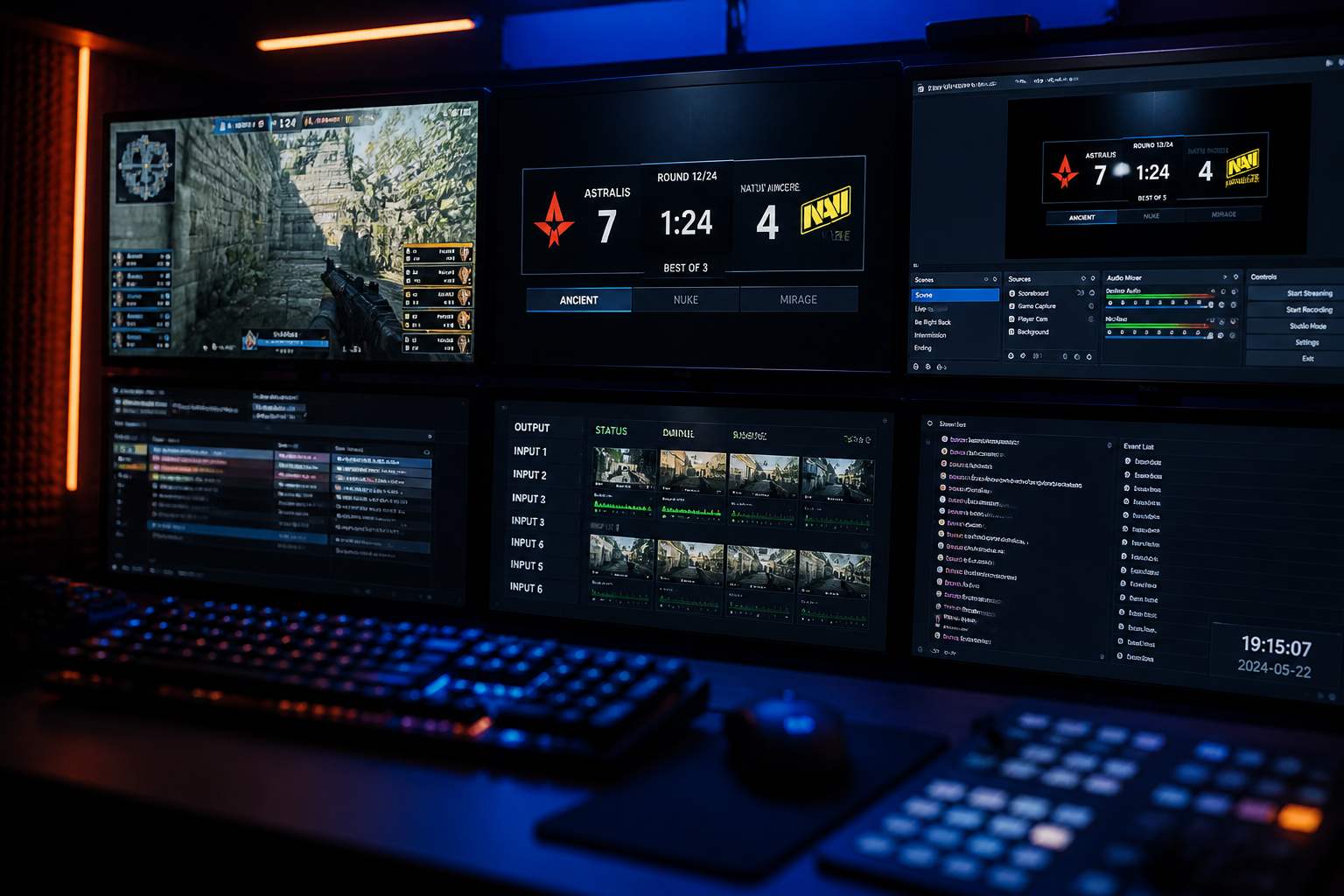
Manually updating scores on your stream by editing a text source in OBS is slow, prone to errors, and pulls your focus away from the action. For any serious broadcast, you need a dynamic solution. This guide will teach you how to create and implement a free **OBS scoreboard overlay** using only a browser source, with no plugins required. You will learn the basic web principles to build your own live-updating scorebug and see how it can be controlled from anywhere. We'll then show you how to graduate from this manual approach to a fully automated system using a professional tool like HUDrift, giving your stream the polish of a major tournament broadcast.
What is a Browser Source Scoreboard and Why Use One?
At its core, the 'Browser' source in OBS Studio is a fully functional web browser integrated into your scene. While many streamers use it to display alerts or chat boxes, its real power lies in its ability to render any custom web page. Instead of pointing it to a static image file for your scoreboard, you point it to a local HTML file or a live URL. This webpage contains the visual elements of your scoreboard—team names, scores, logos, timers—all structured with HTML and styled with CSS.
The primary advantage is the separation of data and presentation. Your OBS scene simply displays the webpage; the score updates happen within the webpage itself. This means you can change the score without ever touching your OBS window during a live game, preventing accidental scene switches or source misclicks. You could have a simple control panel open on a second monitor, a tablet, or even your phone that updates the score, and OBS will reflect it instantly. This method is inherently more stable than relying on third-party plugins, which can break after an OBS update or be abandoned by their developers.
Maintaining high production quality is more important than ever for audience retention, especially with platforms constantly refining their content discovery systems. For instance, recent reports on YouTube's proposed algorithm changes in the UK underscore the need for creators to produce compelling, professional content to stand out. A crisp, responsive scoreboard is a fundamental element of a professional esports broadcast that viewers have come to expect. It shows you respect the competition and the viewer's time, providing critical information at a glance without distracting from the gameplay.
Building Your Basic HTML/CSS OBS Scoreboard Overlay
Creating your own scoreboard overlay requires a basic understanding of HTML, CSS, and a tiny bit of JavaScript. You don't need to be a web developer; you just need to edit a single text file. Start by creating a file named `scoreboard.html` on your computer. Inside, you'll structure the scoreboard using simple HTML tags. Think of these as the building blocks. You'll want a main container `<div>` that holds everything. Inside that, you'll have separate `<div>` elements for each piece of information: one for the home team's name, one for their score, one for the away team's name, and one for their score. Give each of these elements a unique ID, like `id="teamAName"` or `id="teamBScore"`. This is crucial for updating them later with JavaScript.
Next comes the styling with CSS, which you can write directly into your HTML file inside `<style>` tags. This is where you define the look and feel. To position your scoreboard, you can give the main container `position: absolute;` and then use `top: 20px;` and `left: 20px;` to place it in the top-left corner of your broadcast. Use `font-family` to choose a clean, readable font like 'Roboto' or 'Montserrat' (you can import these from Google Fonts). Set `color: white;` for the text. For the background, you can use a semi-transparent black for a modern look: `background-color: rgba(0, 0, 0, 0.7);`. To arrange the team names and scores neatly, CSS Flexbox is your best tool. By setting `display: flex;` and `align-items: center;` on the containers for each team, you can ensure their name and score are perfectly centered vertically. You can add padding to give the text some breathing room and `border-radius` to give the scoreboard rounded corners.
The 'live' functionality comes from a small amount of JavaScript. The simplest method for manual control involves using URL parameters. Your JavaScript code, placed in `<script>` tags at the bottom of your HTML file, will read these parameters from the URL and update the scoreboard. The script will look for parameters like `?teamA=FaZe&scoreA=13&teamB=NIP&scoreB=9`. It will then find the HTML element with `id="teamAName"` and set its content to 'FaZe', find the element with `id="teamBScore"` and set its content to '9', and so on. This means to update the score, you aren't editing the file itself, but rather the URL you are loading in the OBS browser source properties. This is a significant step up from editing text files directly.
To make this even more practical, you can create another simple HTML file called `controller.html`. This page would have input fields for each team's name and score, and buttons to increment or decrement the scores. The JavaScript on this controller page would simply construct the URL with the correct parameters (`scoreboard.html?teamA=...`) and open it. While this still requires manual input, it provides a user-friendly interface for a dedicated scorekeeper to use on a separate device, completely independent of the main OBS production machine. This two-file system—one for display, one for control—is the foundation of many web-based broadcast graphics systems.
How to Add Your Custom OBS Scoreboard Overlay to a Scene
Once you have your `scoreboard.html` file ready, integrating it into OBS Studio is straightforward. The process uses the built-in Browser Source, so no external plugins are needed. This ensures maximum compatibility and stability, as it relies on core OBS functionality that is well-maintained. Follow these exact steps to add your custom overlay to your game scene.
- Select the OBS scene you want to add the scoreboard to (e.g., 'CS2 Match').
- In the 'Sources' dock at the bottom of the OBS window, click the '+' icon and choose 'Browser' from the list.
- A dialog box will appear. Give your source a descriptive name like 'Live Scorebug' and click 'OK'.
- In the 'Properties' window that appears next, check the box labeled 'Local file'.
- Click the 'Browse' button and navigate to where you saved your `scoreboard.html` file. Select it.
- Set the 'Width' and 'Height' to match the full resolution of your canvas, typically 1920 and 1080 for a standard 1080p stream. Your CSS positioning will handle placing the scoreboard correctly within this canvas.
- Scroll down to the 'Custom CSS' text box. It's crucial to add `body { background-color: rgba(0, 0, 0, 0); margin: 0px auto; overflow: hidden; }` here. This code ensures that the background of your HTML page is transparent, so only your scoreboard elements are visible over your game feed.
- Click 'OK' to close the properties. Your scoreboard will now appear in your scene preview. You can click and drag it to fine-tune the position or resize the source box if needed.
To update the score using the URL parameter method described earlier, you will need to re-open the source's properties. Double-click on the 'Live Scorebug' source in your source list. Uncheck 'Local file'. Now, in the 'URL' field, you will enter the path to your file with the parameters. It would look something like this: `file:///C:/Users/YourUser/Documents/OBS/scoreboard.html?scoreA=1&scoreB=0`. When a team scores, you go back into these properties, change `scoreA=1` to `scoreA=2`, and click 'OK'. OBS will reload the source with the new data. For more detailed information on configuring browser sources, the official OBS Project documentation is an excellent resource.
Automating Score Updates with HUDrift for Professional Broadcasts
The DIY method is an excellent way to understand the technology, but for a fast-paced game like Valorant or CS2, manual updates are a liability. A single missed round or a typo can undermine your credibility. This is the point where you should move to an automated system. HUDrift is designed to solve this exact problem by connecting directly to the game's data feed, providing a truly automated **OBS scoreboard overlay** that requires zero manual input during a match.
The workflow is vastly simplified. Instead of building your own HTML files, you choose from a library of professionally designed and tested broadcast overlays in your HUDrift dashboard. These are designed for specific games, with elements for scores, player stats, utility usage, and more. After customizing the overlay with your tournament or stream's branding, HUDrift generates a single, unique browser source URL for you. You copy this URL.
You then follow the same process in OBS: add a Browser source, but instead of selecting a local file, you paste this one URL into the 'URL' field. That's it. When you are broadcasting a connected match, HUDrift's servers receive live game state integration (GSI) data from the game. As rounds are won, players get kills, or the bomb is planted, HUDrift automatically updates the graphics being rendered at that URL. Your OBS overlay updates in real-time with no action required from you. This is how major tournament organizers broadcast multiple concurrent matches, like those in the recent XSE Pro League featuring teams like FaZe and NIP, without needing a dozen producers manually typing in scores.
Managing Tournament Players and Communication
A professional broadcast is more than just the on-screen graphics; it's also about the behind-the-scenes organization. Managing player check-ins, distributing match information, and handling disputes can be chaotic, especially in a large Discord server. Automating communication is just as important as automating your scoreboard. This is another area where a unified platform provides significant advantages over a collection of separate tools and manual processes.
HUDrift integrates tournament administration directly into its system using Discord for communication. When you set up an event on the platform, players sign up and are prompted to connect their Discord accounts. This link is key to the automation. Once a player successfully registers, HUDrift's bot immediately sends them a direct message confirming their entry into the tournament. This eliminates any ambiguity about whether their registration was successful.
The pre-match process is also streamlined. Approximately one hour before the tournament's scheduled start time, every registered player receives another DM containing a unique check-in link. This prevents the classic 'check-in is now open!' ping in a crowded channel where it can easily be missed. Once the check-in window closes and the tournament organizer seeds the bracket, the final piece of automation occurs: each player in the first round receives a new DM that explicitly tells them who their opponent is and which server to join. This targeted, individual communication ensures every participant has the correct information, drastically reducing match delays and admin overhead. If you're looking to run smoother events, explore our tournament management features.
While a custom scoreboard is a powerful visual upgrade, integrating it with a system that also handles the logistical side of a competition creates a seamless experience for both players and broadcast staff. You move from being a streamer to being a true tournament organizer. The time you save by not having to manually DM players or update scores can be reinvested into creating better content, engaging with your chat, or planning your next event. By using a single platform for overlays and administration, you ensure consistency and professionalism from start to finish.
Building an OBS scoreboard overlay from scratch is a valuable exercise that teaches you the fundamentals of browser-based graphics. It's a viable free option for simple use cases. However, as your production ambitions grow, the limitations of manual updating become clear. For reliable, error-free, and professional-looking broadcasts, especially for competitive esports, an automated system is the logical next step. Tools like HUDrift provide the power of a major-league broadcast graphics package with the simplicity of copying and pasting a URL. Elevate your stream beyond the basics and give your audience the quality they deserve. Download HUDrift to get started with automated overlays for your next broadcast.
Setting Up Your Basic OBS Scoreboard Overlay with Browser Sources
The foundation of this method is the Browser Source in OBS. Instead of a plugin, you are essentially loading a tiny, self-contained webpage directly into your stream layout. This webpage can be a live site from the internet or, in this case, a file stored on your own computer. This gives you the power of HTML, CSS, and JavaScript to create dynamic and interactive elements without installing third-party software that could compromise OBS stability. It’s a native, lightweight, and powerful feature that is often underutilized by new streamers.
To begin, you need to create the local files for your scoreboard. Open a plain text editor like Notepad on Windows or TextEdit on Mac. Create a new file and save it as `scoreboard.html`. Inside this file, you will place the structure (HTML), styling (CSS), and interactivity (JavaScript) for your scoreboard. This might sound intimidating, but for a basic scoreboard, the code is straightforward. The HTML defines the elements like team names and scores, the CSS styles them with colors and fonts, and the JavaScript provides functions to change the numbers.
Here is a simple template to get you started. Copy this code and paste it into your `scoreboard.html` file: ```html <!DOCTYPE html> <html> <head> <style> body { background-color: rgba(0, 0, 0, 0); margin: 0px auto; overflow: hidden; font-family: Arial, sans-serif; color: white; } .scoreboard { display: flex; background-color: #222; padding: 10px; border-radius: 5px; } .team { padding: 0 15px; } .score { font-size: 24px; font-weight: bold; } </style> </head> <body> <div class="scoreboard"> <div class="team">Team A: <span id="scoreA" class="score">0</span></div> <div class="team">Team B: <span id="scoreB" class="score">0</span></div> </div> <script> function updateScore(team, value) { document.getElementById(team).innerText = value; } </script> </body> </html> ``` This simple code creates a dark grey box with 'Team A' and 'Team B' and their respective scores, initially set to zero. Now, let's add it to OBS.
In OBS Studio, go to the 'Sources' dock and click the '+' button. Select 'Browser'. Give it a name like 'Manual Scoreboard'. In the Properties window that appears, check the box for 'Local file'. Click the 'Browse' button and find the `scoreboard.html` file you just saved. Set the `Width` and `Height` to something appropriate, like `400` width and `60` height, to contain your scoreboard. You can now see the scoreboard in your OBS preview window. You can drag it and resize it like any other source.
Manually Updating Scores and Team Info for Live Matches
You have a scoreboard on your stream, but the scores are stuck at zero. To update it live, you'll use OBS's 'Interact' feature. Right-click on your 'Manual Scoreboard' source in the Sources dock and choose 'Interact'. This opens a new window that displays your local HTML file as if it were in a web browser. The key difference is that this window has a developer console and allows you to execute the JavaScript functions you defined in your file.
To update the score, you would use the JavaScript functions we created. However, manually typing `updateScore('scoreA', 1)` into a console mid-game is not practical. A better manual method is to create a separate 'controller' HTML file. This file, let's call it `controller.html`, would have buttons that, when clicked, update the scoreboard. This requires more complex JavaScript using `localStorage` or a local server to communicate between the controller window and the OBS browser source. For most users, this level of setup introduces significant complexity and points of failure.
The 'Interact' window method, while clunky, is the most direct way without extra files. Imagine you are casting a high-stakes CS2 match, like the recent 1win vs. Liquid game where every round was critical. As the round ends, you would need to quickly switch to the Interact window, manually change the score, and then return to your game capture and commentary. A misclick or a moment of hesitation means your broadcast's information is out of date, which immediately looks unprofessional and detracts from the viewer's experience. This manual overhead is precisely why this method, while functional, is not used for serious, recurring broadcasts.
This manual workload multiplies in a tournament setting. If you're covering the early rounds of a qualifier bracket, like the one that saw 100 Thieves and BCG fighting for a spot, you might be jumping between multiple games. Keeping track of and manually updating several different scoreboards is a recipe for disaster. It highlights the fundamental limitation of manual control: it doesn't scale and it divides the caster's attention.
Automating Your OBS Scoreboard Overlay with HUDrift
The manual process demonstrates the concept, but automation is what enables professional-quality production. This is where a tool like HUDrift comes in. Instead of creating local files and manually interacting with them, HUDrift connects directly to the game's data feed for supported titles like CS2 and Valorant. It processes the game state in real-time and provides you with a simple browser source URL. There is no manual updating because the source itself is being updated by our servers.
The setup is far simpler than the manual method. You create a HUDrift account, link your game, and start a session. HUDrift provides a unique, persistent URL for your broadcast. In OBS, you add a Browser source, but this time you leave 'Local file' unchecked. You paste the HUDrift URL into the 'URL' field, set your dimensions, and you're done. The scoreboard, player information, utility usage, and match state will now appear and update automatically as the game progresses. It just works. As nafany said about his 1win squad coming together, when the components work in harmony, "It's like a dream" — that's the goal for your production tools.
This automation frees you, the caster, to focus entirely on commentary and analysis. You no longer need to worry about whether the score is correct or who won the last round. The data is pulled directly from the game's Game State Integration (GSI) for CS2 or the in-game API for Valorant, making it the source of truth. This is how major tournament organizers produce flawless broadcasts. They rely on a data pipeline that feeds directly into their graphics packages. HUDrift brings that same level of automation to your personal stream or community tournament, allowing you to use our pre-designed professional overlays or integrate the data into your own custom graphics.
Advanced Customization: Using CSS in Your Browser Source
Whether you're using a local file or a URL from a service like HUDrift, the OBS Browser Source offers a powerful tool for customization: the 'Custom CSS' field. This text box allows you to inject your own CSS rules to override the default styling of the webpage being displayed. This is an excellent way to make a generic scoreboard match your stream's unique branding without needing to edit the source HTML or JavaScript.
For example, let's say you're using the basic HTML template from earlier. The default font is boring, and the colors are generic. In the Custom CSS field within the OBS Browser Source properties, you could add the following code: ```css body { font-family: 'Montserrat', sans-serif; } .scoreboard { background-color: #7B1AFE; border: 2px solid #FFFFFF; } .score { color: #F0F0F0; } ``` This simple addition would change the font (assuming you have Montserrat installed or loaded elsewhere in your stream), change the background to a vibrant purple, add a white border, and adjust the score color for better contrast. You can target any class or ID from the source HTML. This is incredibly powerful for making quick adjustments to colors, fonts, sizes, and even hiding elements you don't want to show (`display: none;`).
This technique is essential for brand consistency. You can match the scoreboard colors to your webcam border, alert boxes, and other stream graphics. For those who want to dive deeper into what's possible, the official OBS Project documentation provides a solid starting point, though the best resources are often general web development guides on CSS selectors and properties. While HUDrift's overlay packages come professionally designed, the Custom CSS field gives you the ultimate power to tweak every last detail to your liking, ensuring the final product is uniquely yours.
Integrating Scoreboards for Tournament Organization
The need for a reliable OBS scoreboard overlay grows exponentially when you move from casting a single match to organizing an entire tournament. Manually creating and distributing scoreboard assets for dozens of teams and casters is an operational nightmare. This is a problem of scale, and it requires a systematic, automated solution. A tournament organizer's main job is to ensure the event runs smoothly, and that includes the technical production for every match that gets broadcast.
This is where HUDrift's integrated tournament management system provides a distinct advantage. When you run your event through HUDrift, the platform handles player communication and generates unique broadcast assets for every single match. The player and organizer experience is streamlined through Discord integration. First, a player signs up for your tournament on the HUDrift site and connects their Discord account. They immediately receive a confirmation DM from the HUDrift bot, confirming their entry and providing peace of mind.
As the tournament approaches, the system automates crucial checkpoints. About an hour before the start time, every registered player receives another DM with a one-click link to check in. This eliminates the classic tournament problem of chasing down players to confirm they are present. Once check-ins are closed and the admin seeds the bracket, the magic happens. Every player in every match instantly receives a new DM telling them who their opponent is and which server to join. For any of these matches being streamed, HUDrift automatically generates a unique scoreboard URL. An admin can give this URL to a community caster, and it will be pre-populated with the correct team names, logos, and will update with live data if it's a supported game. This allows you to have professional-level production across your entire bracket, not just the grand final.
This process solves the scaling problem. You can have a 128-team tournament, and HUDrift will generate 127 unique match contexts, each with its own potential scoreboard URL. It removes the burden of manual setup from your casters and production team, freeing them to cover more games and create more content. If you're serious about running organized, professional-looking esports events, automating your production workflow is not a luxury; it's a necessity. The manual OBS scoreboard overlay is a great starting point for a personal stream, but a fully automated system is the only way to scale.
Getting started with the manual method is a valuable exercise in understanding how browser sources work. But when you're ready to elevate your broadcast and eliminate manual data entry, the solution is clear. An automated system saves you time, reduces errors, and allows you to produce a more professional and engaging stream for your audience. You can explore the power of automated, data-driven graphics by giving our tools a try. Download HUDrift today and see the difference for yourself.
Frequently Asked Questions
- Can I use a browser source scoreboard for any game?
- Yes. The manual, DIY method of creating an HTML/CSS scoreboard will work for any game, as you are updating it yourself. Automated systems like HUDrift have dedicated support for specific games like CS2 and Valorant to pull live data, but also offer control panels for manual operation for any other game, giving you the best of both worlds.
- Do I need to know how to code to use an OBS scoreboard overlay?
- To build one yourself from scratch, you will need very basic HTML, CSS, and JavaScript knowledge. However, to use a service like HUDrift, absolutely no coding is required. You simply choose a design from a gallery, customize colors or logos through a simple web interface, and copy a single URL into OBS. The complex code is all handled for you.
- Is a browser source overlay better than an OBS plugin?
- Often, yes. Browser source overlays are generally more stable and flexible. They rely on the core, well-supported browser technology built into OBS. Plugins are third-party additions that can become outdated, conflict with OBS updates, or be abandoned by their developers, leading to potential crashes or instability on your broadcast machine.
- How much does a professional scoreboard overlay cost?
- The DIY method is free if you have the time to learn and build it. For automated solutions, costs vary. HUDrift offers a multi-tiered approach, including a free plan that provides access to essential overlays for your stream. Paid plans offer more advanced graphics, higher customization, and priority support. You can review the different options on our pricing page.
- Can I control my scoreboard from a different computer or tablet?
- Yes, this is a major advantage of using web-based overlays. If you build your own controller page, you can host it online and access it from any device with a web browser. Services like HUDrift also provide web-based control panels that allow a designated producer or scorekeeper to manage the broadcast graphics from a separate machine, freeing up the main streamer or caster.
- Can I use this OBS scoreboard overlay for any game?
- Yes and no. The manual method using a local HTML file and the 'Interact' window will work for any game, as you are the one updating the score. However, automated scoreboard overlays like those from HUDrift require specific integration with the game to read data automatically. HUDrift supports titles like CS2 and Valorant, with more being added. For other games, the manual method is your best starting point.
- Does using a browser source scoreboard impact stream performance?
- Generally, the performance impact is minimal, especially compared to full-fledged plugins. A simple local HTML file with minimal JavaScript uses very few resources. A browser source loading a URL from a service like HUDrift is also highly optimized. The main performance consideration in OBS is typically the game capture and video encoding. A well-made browser source overlay will not be a bottleneck for most modern streaming PCs. You can monitor usage in the OBS stats dock.
- What's the difference between a local file and a URL in an OBS browser source?
- A 'Local file' points the browser source to an HTML file on your computer's hard drive. You are responsible for creating and updating this file. A 'URL' points the browser source to a live webpage on the internet. This is how services like HUDrift deliver automated overlays; their servers update the webpage, and your OBS source automatically reflects those changes. Using a URL is the key to automation.
- How does HUDrift get live game data for CS2?
- For Counter-Strike 2, HUDrift utilizes Valve's built-in Game State Integration (GSI) system. This is a feature provided by the game developers specifically for this purpose. It allows the game client to send a continuous stream of JSON data about the match state—such as scores, player health, and inventory—to a local service. HUDrift's client securely reads this data and relays it to our servers to power the automated overlays.
- Is there a free scoreboard overlay for OBS that updates automatically?
- Yes. HUDrift offers a free tier that provides access to automated, data-driven overlays for supported games. This gives you the power of a fully automatic OBS scoreboard overlay without the need for manual updates or complex local file configuration. You simply sign up, get your browser source URL, and add it to OBS. This is the easiest way to get a professional, automatically updating scorebug for your stream for free.