How to Show a Tournament Bracket on Stream in OBS
Already on OBS and fighting with brackets? Here is the honest OBS method, its limits, and the native alternative that needs no OBS at all.
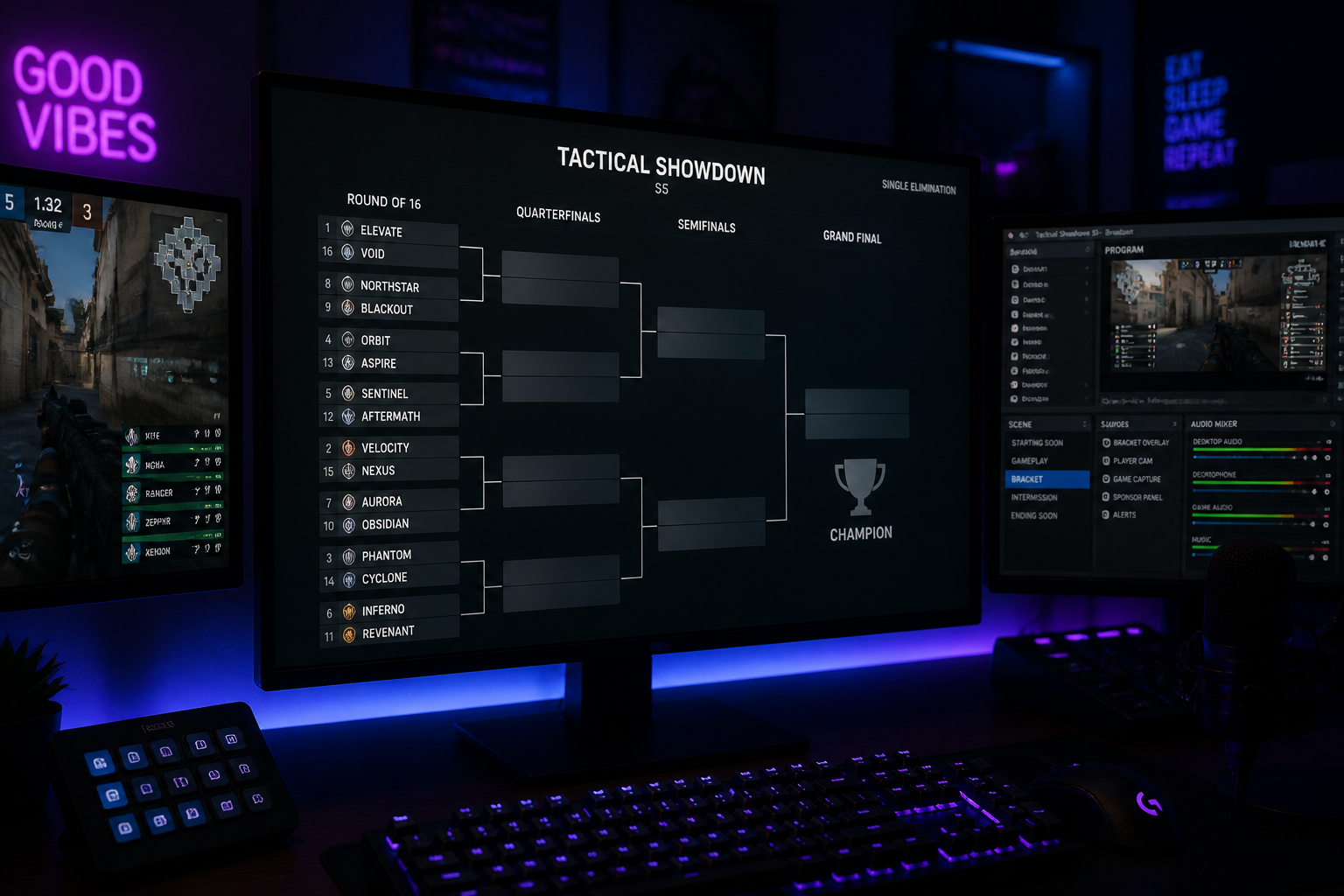
If you run your stream in OBS, getting a live tournament bracket on screen is one of the more awkward jobs in the whole production. OBS has no idea what a bracket is, so you end up screen-capturing a bracket website, cropping a browser source, or refreshing a static image between rounds. This guide walks the OBS method properly, including where it breaks down, and then shows the native alternative if you would rather not fight it.
Setting Up Your HUDrift Tournament for a Live Stream Tournament Bracket
Before you can display a bracket on stream, you need a tournament to power it. The bracket is not just a graphic; it's a visual representation of data. The foundation of a great tournament broadcast is a well-structured event managed through a capable platform. This is where you input the match results that will automatically update the visual for your viewers.
Start by navigating to the HUDrift Tournaments page. After creating your account, you can create a new tournament in minutes. You'll define the core parameters of your event: the tournament name, the game (e.g., Counter-Strike 2, Valorant, Rocket League), the format, and the schedule. It's crucial to select the correct format from the start, whether it's a straightforward single-elimination, a more resilient double-elimination, or a multi-stage group-to-playoff structure. This data model is what HUDrift uses to generate the bracket structure and advance teams correctly as you report scores.
A clear ruleset and schedule are non-negotiable for a smooth event. This applies to grassroots community cups as much as it does to professional leagues. Even the Call of Duty League is re-evaluating its structure for 2026, with its general manager noting a focus on international expansion into Europe and Latin America to grow its audience. For your stream, this means clearly defining check-in times, match-reporting procedures, and rules on player disconnects. Having this framework in place on your HUDrift tournament page gives you a central source of truth to refer to during the broadcast.
Integrating the Bracket into OBS or Streamlabs as a Browser Source
Once your tournament is created in HUDrift, you will have access to a unique public URL for the bracket. This link is the key to your live overlay. It leads to a webpage that displays the current state of your tournament. By adding this webpage to your broadcast software as a browser source, you effectively embed a live, self-updating graphic into your stream.
The process in OBS Studio is direct. First, decide which scene will feature the bracket. You might have a dedicated 'Bracket' scene for use between matches or during analysis segments. In the 'Sources' dock for that scene, click the '+' icon and select 'Browser'. Give the source a descriptive name like 'HUDrift Live Bracket' so you can easily identify it later. This opens the Properties window, which is where the integration happens.
- In the 'URL' field, paste the unique bracket URL you copied from your HUDrift tournament dashboard.
- Set the 'Width' and 'Height' to match your stream's canvas resolution. For a 1080p stream, you should use Width: 1920 and Height: 1080. This prevents the source from being upscaled and appearing blurry; it renders the webpage at its native, crisp resolution.
- Keep the 'Refresh browser when scene becomes active' option checked. This is an important setting that tells OBS to reload the page every time you switch to this scene, ensuring your viewers are always seeing the absolute latest version of the bracket.
- You can leave the 'Custom CSS' field blank. HUDrift's bracket is designed for clarity and readability out of the box.
After clicking 'OK', the bracket will appear in your OBS canvas. You can resize and position it as needed. The magic of this method is its simplicity. When you mark a match as complete in your HUDrift dashboard, the bracket webpage updates instantly. The browser source in OBS, being just a window to that live webpage, reflects the change on your stream within seconds, with no further action required from you. For a more detailed understanding of all available settings, the official OBS Project documentation on sources is an excellent resource.
How to Automate Player Logistics for Your Stream Tournament Bracket
A live bracket is only as good as the tournament data feeding it. Delays in matches, no-shows, or players being unable to find their opponents will bring your broadcast to a halt, regardless of how slick your overlays are. Managing player communication is often the most stressful part of running a tournament. HUDrift automates this entire process through direct integration with Discord, ensuring your event runs on schedule.
The automated workflow is designed to be hands-off for you as the organizer and broadcaster. It consists of three key automated touchpoints that guide players through the process:
- **1. Signup Confirmation:** When a player signs up for your tournament through the HUDrift page, they are prompted to connect their Discord account. The moment they complete registration, the HUDrift bot sends them a direct message. This DM confirms their successful entry into the tournament and serves as an initial point of contact.
- **2. Check-in Reminder:** A common failure point for online tournaments is players registering but not showing up on match day. To combat this, HUDrift sends an automated DM to all registered players approximately one hour before the tournament's scheduled start time. This message contains a unique check-in link. Only players who click this link are marked as 'checked in' and become eligible for seeding.
- **3. Match Assignment:** Once the check-in period is over, you, the admin, can close check-ins and seed the bracket with a single click. This action triggers the final automated DM. Every checked-in player receives a new message from the HUDrift bot that tells them their first-round opponent and provides a link to their match page on HUDrift. There is no confusion, no "who is my opponent?" spam in your Discord server.
This streamlined communication ensures that by the time your broadcast goes live, the bracket is populated with active, ready-to-play participants. You are freed from the logistical nightmare of manually organizing matches in Discord DMs and can instead focus your energy on delivering high-quality commentary and production for your viewers.
Advanced Presentation and Storytelling Techniques
Simply showing a full bracket on screen during a break is functional, but to elevate your broadcast, you should use the bracket as a storytelling tool. The bracket visualizes the tournament's narrative—the upsets, the dominant runs, the rivalries. Your job as a caster is to interpret that narrative for the audience.
When you switch to your full bracket scene, don't just let it sit in silence. Talk through the results. Point out the close 13-11 victory or the surprising 2-0 sweep. Build anticipation for upcoming matches. The pro CS2 scene, for instance, provides constant storylines with roster changes. When news breaks that MOUZ and Jimpphat part ways, it sends ripples through the scene. If a team in your tournament just underwent a similar roster change, use the bracket to highlight their path. Is the new player stepping up? Are they struggling to find synergy? These are compelling narratives grounded in the visual data of the bracket.
You can also get more creative with your OBS scenes. Instead of only having one full-screen bracket scene, create a gameplay scene that includes a cropped version of the bracket. In OBS, you can crop any source by holding the 'Alt' key and dragging the red handles of the bounding box. You could crop the browser source to show only the specific quadrant of the bracket relevant to the match currently being played. This provides constant context without taking up the entire screen.
Another powerful but underutilized feature in OBS is 'Interact'. Right-click your browser source in the 'Sources' dock and select 'Interact'. This opens a new window that lets you interact with the webpage as if you were in a regular browser. For a large, 128-team bracket, this allows you to scroll and zoom in on specific areas live on stream while you talk, guiding your viewers' attention precisely where you want it.
Beyond the Bracket: Complementary Overlays for a Cohesive Broadcast
A professional **stream tournament bracket** is a centerpiece of your production, but it must exist within a consistent visual ecosystem to be truly effective. A jarring switch from a sleek, modern bracket to a default, unstyled in-game scoreboard can break the professional illusion you're working to create. Your broadcast's visual identity should be cohesive across all scenes and elements.
This is why HUDrift provides a full suite of broadcast tools, not just a bracket generator. All our graphics are designed to work together. When you transition from your full bracket scene back to live gameplay, the on-screen scoreboard should feel like it belongs to the same visual package. The fonts, colors, animations, and data should be consistent. You can explore our full library of production-ready graphics at HUDrift Overlays.
For example, in a CS2 broadcast, you would pair your HUDrift bracket scene with a gameplay scene that uses the HUDrift live scoreboard and player inventory overlays. Because they all pull data from the same source (either the game via our desktop app or your tournament dashboard), they remain perfectly in sync. This creates a seamless viewing experience where every piece of on-screen information is accurate, timely, and visually aligned, signaling to your audience that they are watching a well-managed and professional production.
Ultimately, moving from a static image to a live-updating system is about reducing your workload as a broadcaster while simultaneously improving the quality of the stream for your viewers. You save time and mental energy by not having to manually update graphics, allowing you to focus on commentary and community interaction. Your viewers, in turn, get a clearer, more engaging, and professional-looking broadcast that keeps them informed and invested in the tournament's outcome.
The tools to achieve this are more accessible than ever. You don't need a dedicated graphics operator or expensive broadcast hardware. With OBS Studio, a free and powerful broadcasting application, and HUDrift's integrated tournament and overlay system, you can produce a tournament stream that rivals those of much larger organizations. Ready to get started? Create your first tournament on HUDrift and see how simple it is to elevate your broadcast. For the full suite of live game-data overlays, be sure to download the HUDrift app.
Where the OBS bracket method breaks down
Every OBS approach to brackets shares the same weakness: OBS is compositing a picture of a bracket that lives somewhere else. Nothing tells the scene that a match just finished, so the bracket on stream is only as current as your last refresh or your last manual crop. On a 16 or 32 team event that is a job you are doing between every single series, usually while also calling the game.
- Browser sources reload on their own schedule, not when a result lands.
- Cropping breaks the moment the bracket grows a round.
- Screen capture drags whatever the site is doing, including cookie banners.
- Nobody can operate it except the person who built the scene.
Skip OBS entirely: run the bracket natively in HUDrift
HUDrift is a complete broadcast studio, not an OBS plugin, and it runs the tournament as well as the broadcast. The bracket on stream is the same bracket the players are reporting into, so a reported result updates the on-air graphic immediately with no refresh, no crop and no second monitor. If you want the walkthrough without any OBS framing, read how to use a tournament bracket overlay on stream.
You can host a tournament on HUDrift today and have the bracket, scoreboard and talent graphics working together from the first match.
Frequently Asked Questions
- How do I update the bracket after a match finishes?
- With HUDrift, you don't update the bracket directly from OBS. As the tournament admin, you report the match score in your HUDrift dashboard. This automatically updates the bracket on our server, and the browser source in your OBS will refresh to show the winner advancing, typically within seconds.
- Can I customize the look of the HUDrift tournament bracket?
- The public bracket page has a clean, standardized design for readability and stability. While direct CSS customization isn't available on the public URL, you can use OBS's built-in color correction and scaling filters on the browser source to make minor adjustments to fit your stream's aesthetic.
- Does this work for both single and double elimination brackets?
- Yes. When you create your event on the HUDrift Tournaments platform, you can select from various formats, including single elimination, double elimination, and round-robin. The browser source will correctly display the structure you choose, including the upper and lower brackets for a double-elimination format.
- What's the best resolution to set for the bracket browser source?
- You should set the browser source's resolution to match your stream's canvas resolution. For a standard 1080p stream, set the Width to 1920 and the Height to 1080 in the source's properties. This ensures the bracket renders crisply without any blurriness or scaling artifacts when displayed full-screen.
- Is a stream tournament bracket better than just sharing a link in chat?
- Yes, significantly. A visual bracket on screen provides context at a glance and tells a story, keeping viewers engaged. It feels more professional and saves viewers the effort of opening another tab. Relying on a chat link means new viewers will miss it, and it breaks the immersive experience of your broadcast.