5 OBS Settings Esports Streamers Should Change
A practical OBS checklist for tightening your encoder, scene transitions and audio routing before going live on Twitch, Kick or YouTube. Tested on real tournament broadcasts.

OBS Studio is free, powerful and — by default — set up for nobody in particular. A fresh install will technically stream, but if you're casting a Valorant match or running a watch party on Kick, the defaults will quietly cost you quality, latency and viewer retention. Five settings are worth changing before your next broadcast.
1. Switch your encoder to NVENC (or AMF) — not x264
If you have an Nvidia GPU made in the last six years, NVENC is almost always the right call. It moves the heavy lifting off your CPU (which your game needs) and the visual quality at 6,000–8,000 kbps is now equivalent to x264 'medium' or better. AMD users: use AMF/AV1 if you're on a 7000-series card.
2. Set keyframe interval to 2 seconds
Twitch and Kick both require a 2-second keyframe interval for stable transcoding. OBS defaults to 'auto', which often works but occasionally fails the platform's ingest checks and silently downgrades your stream. Pin it to 2.
3. Resolution: stream at 1080p60 only if your upload supports it
A choppy 1080p stream looks worse than a clean 936p. As a rule of thumb: you need ~8 Mbps of stable upload for 1080p60 at acceptable quality. If you can't hit that, downscale to 1664x936 or 1280x720 and crank bitrate to 6,000.
4. Audio: 48 kHz sample rate, separate tracks per source
Change your sample rate to 48 kHz globally — this matches what every modern game outputs and stops OBS from quietly resampling (which adds latency and can cause crackling). Then enable multi-track audio in Advanced Output and put your mic, game, Discord and music on separate tracks. Your future VOD editor will thank you.
5. Scene transitions: 200ms cut, not 300ms fade
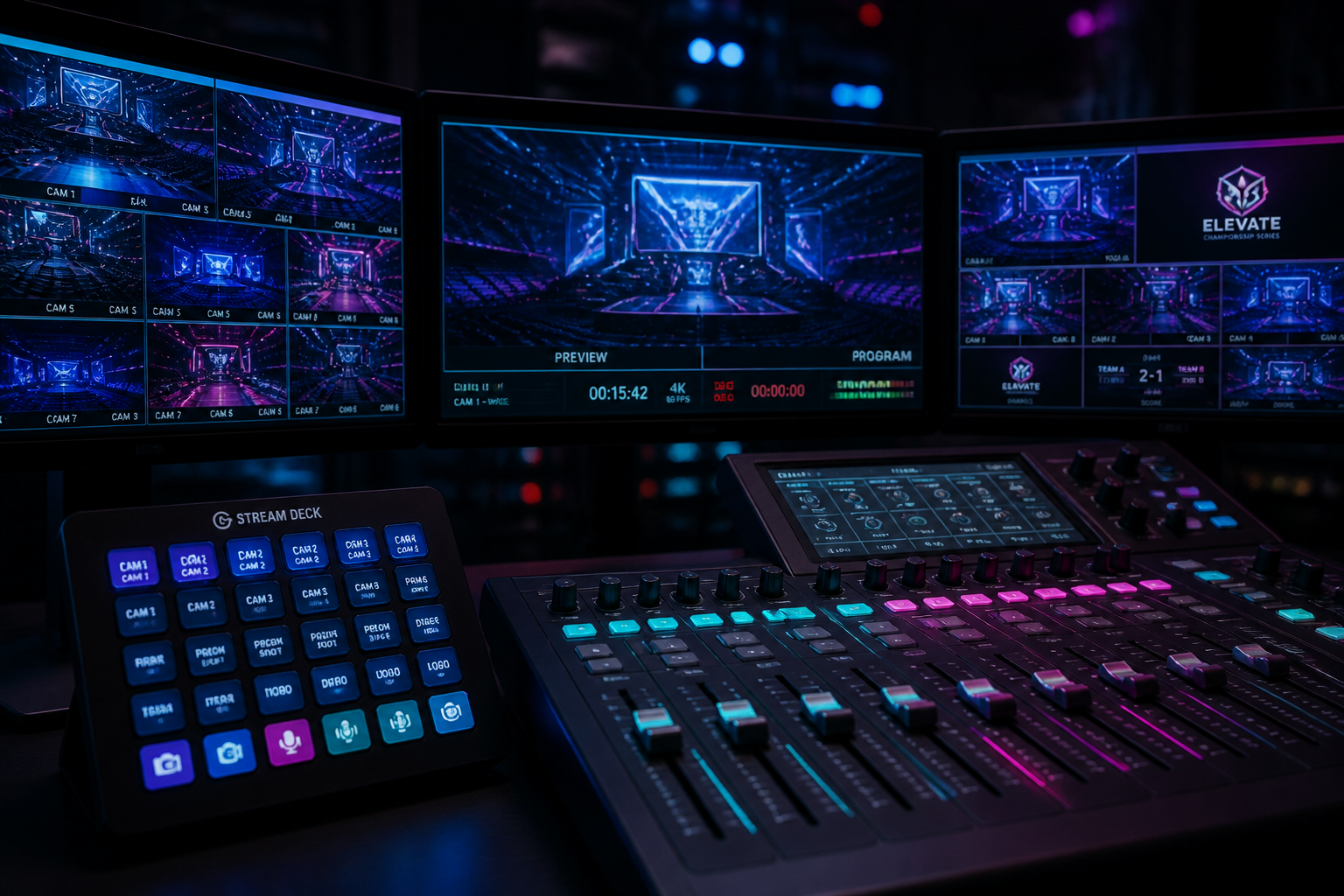
Pro broadcasts feel snappy because their cuts feel intentional. Replace OBS's default 300ms fade with a 200ms hard cut for most scene changes, and reserve fades for replay packages and intermissions. It's a one-line settings change that instantly makes a broadcast feel more like a TV cut.
Once these five are dialled in, your overlays start doing the rest of the work. A consistent scoreboard, a clean lower third and pre-built scene packs are how every tier-1 esports broadcast looks the way it does — and it's exactly what HUDrift automates inside OBS.